Q. I was wondering if I could combine two short posts onto one page without merging them into one post? I am over the page limit you offer and am hoping to reduce the number of pages by consolidating pages and eliminating some wasted space.
A. You have two options.
1) merge in the post manager section (which you can go back to at any time using the tabs at the top of the page), or
2) you can cut and paste the text using the text boxes. You can also cut and paste from your blog (in a separate window) into the SBB text box - I think that way is easier. If photos are involved you can drag and drop them. If you are in the book editor section you hit manage photos. That brings up the photos associated with that page's posts in the left column. If you look at the top there is a link for all photos. That will allow all of your blog's photos to appear. If you want to use a photo drag and drop it into the left column. Then x out of the all photo box. Your book editor page will reappear. Then drag and drop the photo back into the page. It is much easier than it sounds.
Q. Another question about the cutting/pasting....is there a formatting tool to use inside the edit box so I can make the heading on the cut blog larger than the text....I see a header box on the template at the top but cant find any other options in the text area.
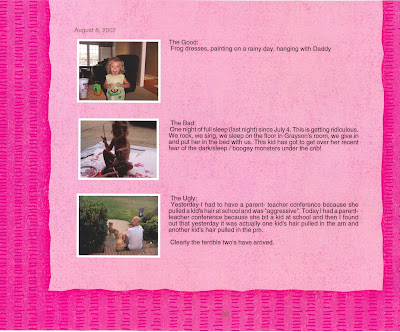
A. The text area has limited options. When I merge two small posts this way I usually add the title and then add 4 spaces so there is a clear space. I have also merged three small posts with one photo each and then aligned the text with the photo. Kind of like the example below. If you are trying for this type of layout always click on the preview tab on the book editor page -- This will ensure that your monitor settings and the pdf print settings do not conflict -- this only tends to be a problem when you are trying to line words and photos up exactly.