Showing posts with label Helpful Hints - Book Editor Page. Show all posts

Monday, June 9, 2008

Merging Posts

Q. I was wondering if I could combine two short posts onto one page without merging them into one post? I am over the page limit you offer and am hoping to reduce the number of pages by consolidating pages and eliminating some wasted space.


A. You have two options.

1) merge in the post manager section (which you can go back to at any time using the tabs at the top of the page), or


2) you can cut and paste the text using the text boxes. You can also cut and paste from your blog (in a separate window) into the SBB text box - I think that way is easier. If photos are involved you can drag and drop them. If you are in the book editor section you hit manage photos. That brings up the photos associated with that page's posts in the left column. If you look at the top there is a link for all photos. That will allow all of your blog's photos to appear. If you want to use a photo drag and drop it into the left column. Then x out of the all photo box. Your book editor page will reappear. Then drag and drop the photo back into the page. It is much easier than it sounds.


Q. Another question about the cutting/pasting....is there a formatting tool to use inside the edit box so I can make the heading on the cut blog larger than the text....I see a header box on the template at the top but cant find any other options in the text area.


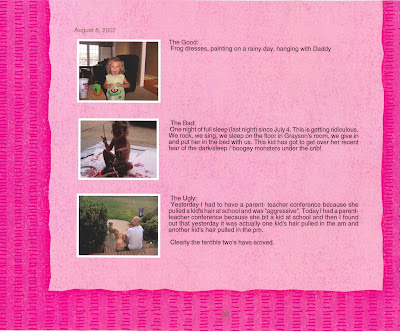
A. The text area has limited options. When I merge two small posts this way I usually add the title and then add 4 spaces so there is a clear space. I have also merged three small posts with one photo each and then aligned the text with the photo. Kind of like the example below. If you are trying for this type of layout always click on the preview tab on the book editor page -- This will ensure that your monitor settings and the pdf print settings do not conflict -- this only tends to be a problem when you are trying to line words and photos up exactly.
Can I resize my photos?

Q. I'm wondering whether it is possible to resize photos or change where the photos go in the layouts. I have mostly photos with little text, and my pages look a little absurd with three little photos and lots of blank space. I'd love to have the option of making the photos bigger.
I see in the photo editing area that it has the X andY coordinates of the photo and the scale of the photo,but it seems to be impossible to change those.


A. You can crop photos but you can't make them bigger. If we allowed photo enlargement we could not guarantee print quality because the photo pixels would enlarge. I wish I had a better answer. You may want to consider changing layouts to see if that works better for your style of blogging. The 1 photo large is a good option or the 4 photo layout has a larger photo on top. You can also use the text box to add new text even if you did not have text in your blog.

Slides

Q. How does your program handle Slides?

A. Unfortunately SBB does not handle slides or videos. It does allow you to import photos from your hard drive. So, if a post has a slide show in it you can upload those photos if you wish. Maybe in the future we will be able to handle slides.

Monday, May 12, 2008

Answers to Your Questions - New Pages and How to Delete a Page

Question 1:

Why does one sometimes have to delete the whole post and not just the page? Currently, on my page 178, I have removed all the photos (and consolidated them on page 177) yet, I can’t delete just page 178!! Help! How can I prevent this??

ANSWER:
This problem is caused when the post runs over onto two pages and you want to delete the second page. The program often does not realize that you have moved all of the text and photos to page one due to the page breaks in the text. Go to the second page -- p. 178 and click on the text box. Hit the delete key to make sure any line page break is gone. This should delete the second page. If it does not work please let us know. We are still working to correct the bug.


Question 2:

I’m trying to add just one page. It’s not part of a post. How can I add a ‘fresh’ page with a new photo and text?

ANSWER:

To add a page you can click on the "+" sign on the book editor page. The "+ "sign is located at the top of the page where it tells you have many pages are associated with a post. This will add a page. Once added you can upload new photos or add text. BUT, the new page will be linked to the post before it. It must have the same title. Everything else can be changed. The program requires all pages be associated with a post. Basically, by adding a page you are adding a page to a post.

Tuesday, March 4, 2008

Helpful Hints - One step at a time


Some users are overwhelmed when they get to the book editor page. The program is designed to allow for X number of words per page with X layout. There are currently 7 layout options available. Each post is automatically given one of these layout options. You, the user, can change the layout or the background at any time. You can also edit your original blog post by changing the text or the photos.

To keep from getting overwhelmed, we suggest you proceed through the Book Editor feature in two steps.

1) Go through the entire book and make all layout changes. Included in this step is all photo exchanges, additions, or deletions, and all changes to your text. You may want to delete additional posts at this point. You may feel that you do not need to print all of your posts or you may want to stick to one theme for your book.

2) Go back through your book and make changes to the backgrounds. If you are using a default setting this step can be skipped. If you would like to change any of the default backgrounds this is the time to do so. You can make every page the same, every page different or mix and match at will!